Step 1 Environment Setup
1.1 Cloud Billing
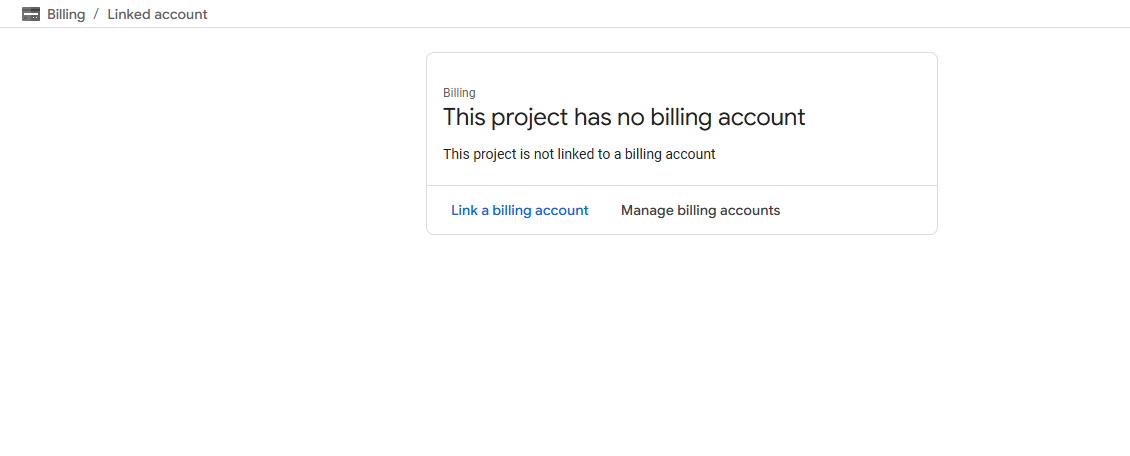
- If the project is not linked to any billing account, link it to an existing billing account. If no billing account exists, create one first and then link it.
1.2 BigQuery
1.2.1 Enable BigQuery API
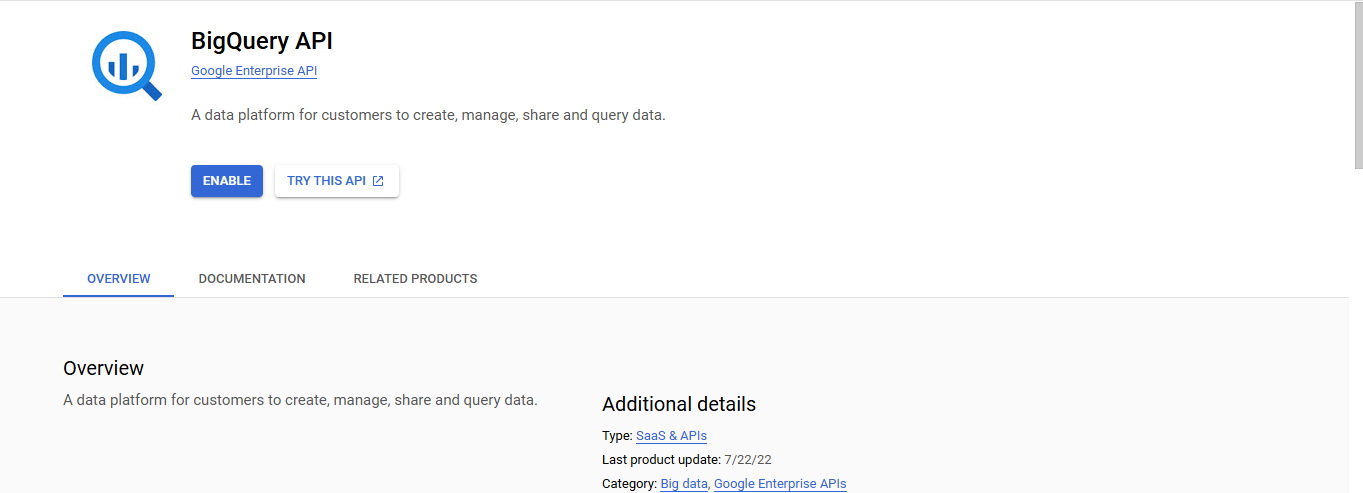
- Enable the BigQuery API if it is not already enabled.
1.2.2 Enable export of your Cloud Billing and Pricing data to BigQuery
Cloud Billing and Pricing export to BigQuery lets you export detailed Google Cloud billing data (such as usage, cost estimates, and pricing data) automatically throughout the day to a BigQuery dataset that you specify.
To enable and configure the export of Cloud Billing usage cost and pricing data to a BigQuery dataset, you need the following permissions:
1. Billing Account Administrator role - for the target Cloud Billing account.
2. BigQuery User role - for the Google Cloud project that contains the BigQuery dataset that will be used to store the Cloud Billing data.
-
Sign into the GCP Console.
-
Choose the project that you want to optimize.
-
Open the Cloud Billing console for that project.
-
Click Go to Linked Billing Account.
Note
- The Cloud Billing account you choose must be linked with the project you select during onboarding.
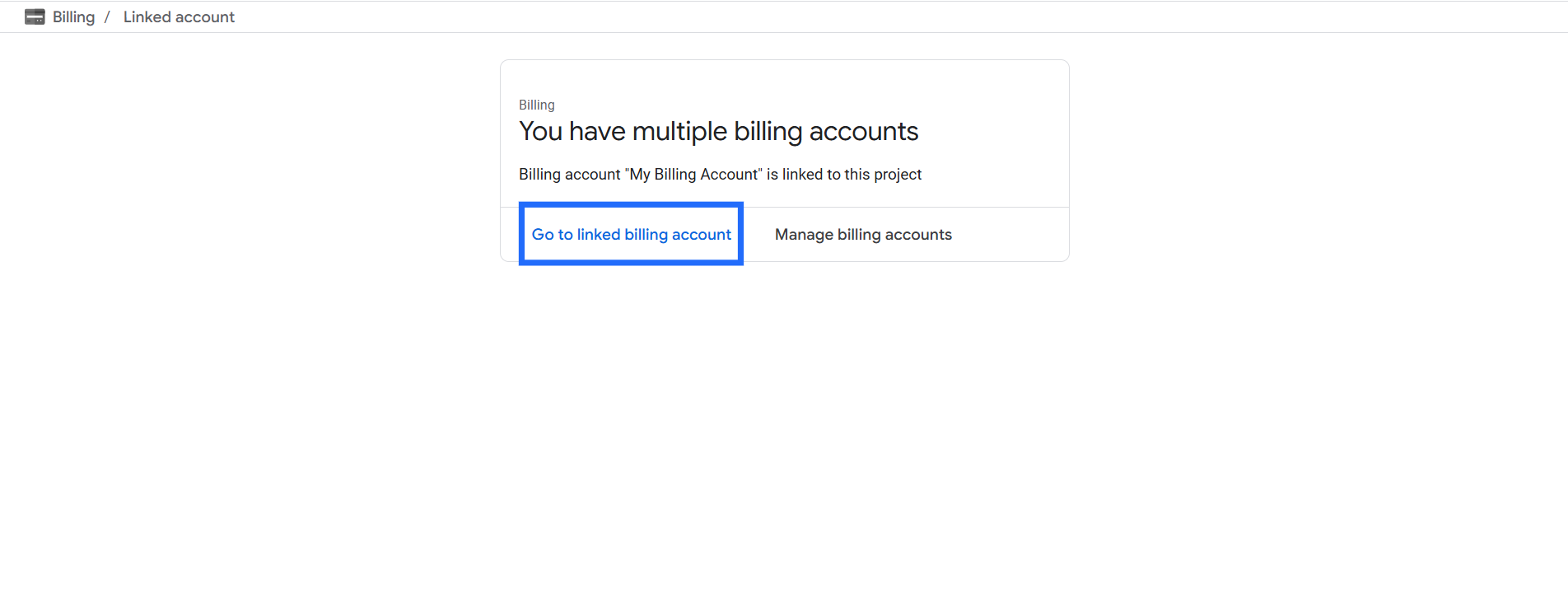
- This will take you to the detailed billing account page for your Billing Account.
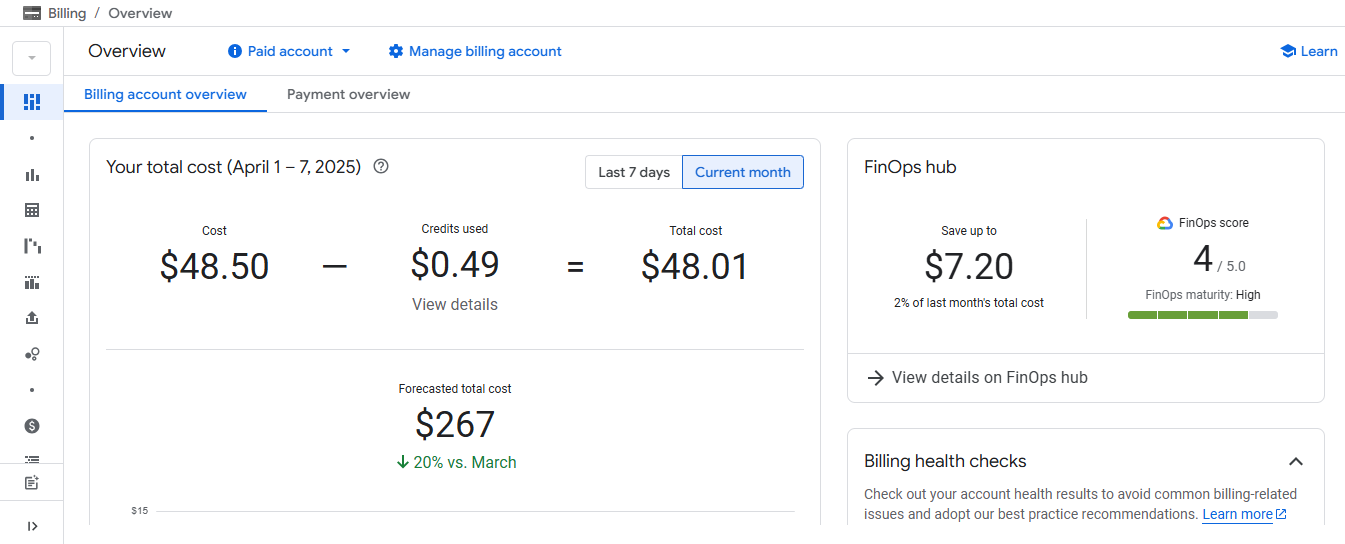
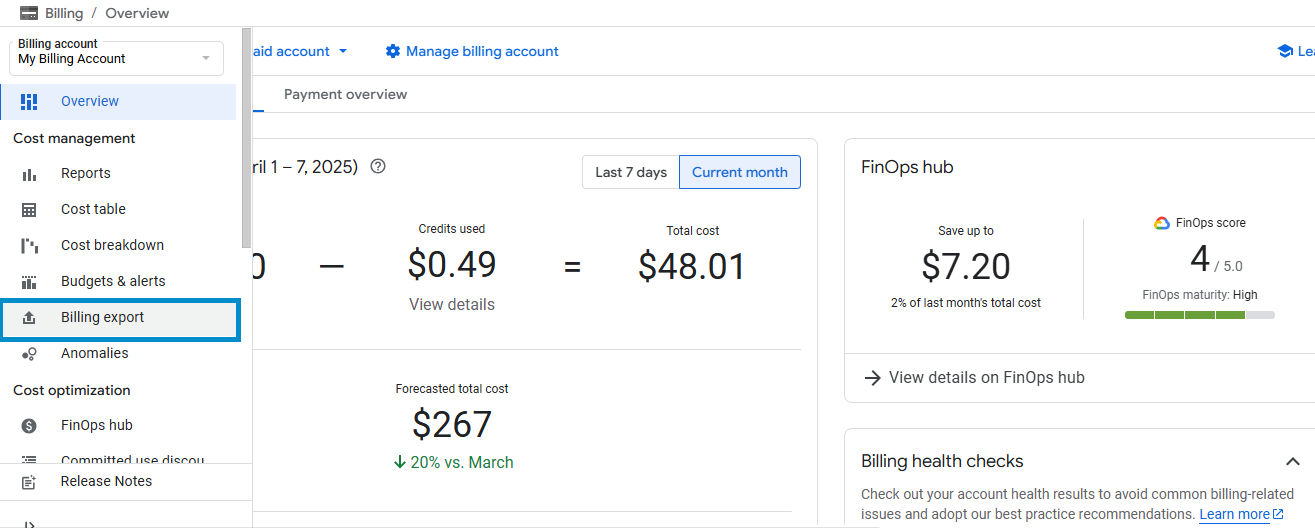
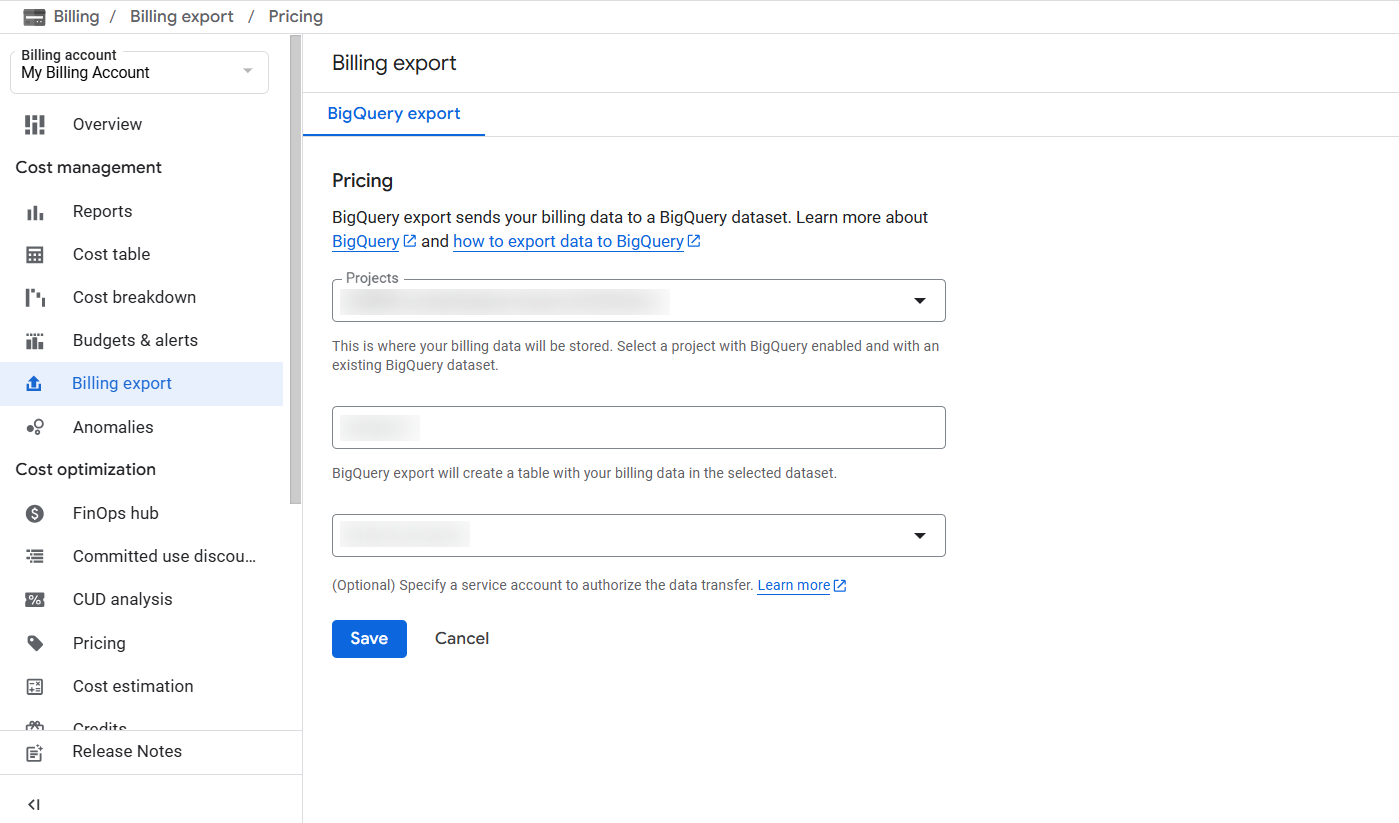
- Select Billing export from the Billing navigation menu.
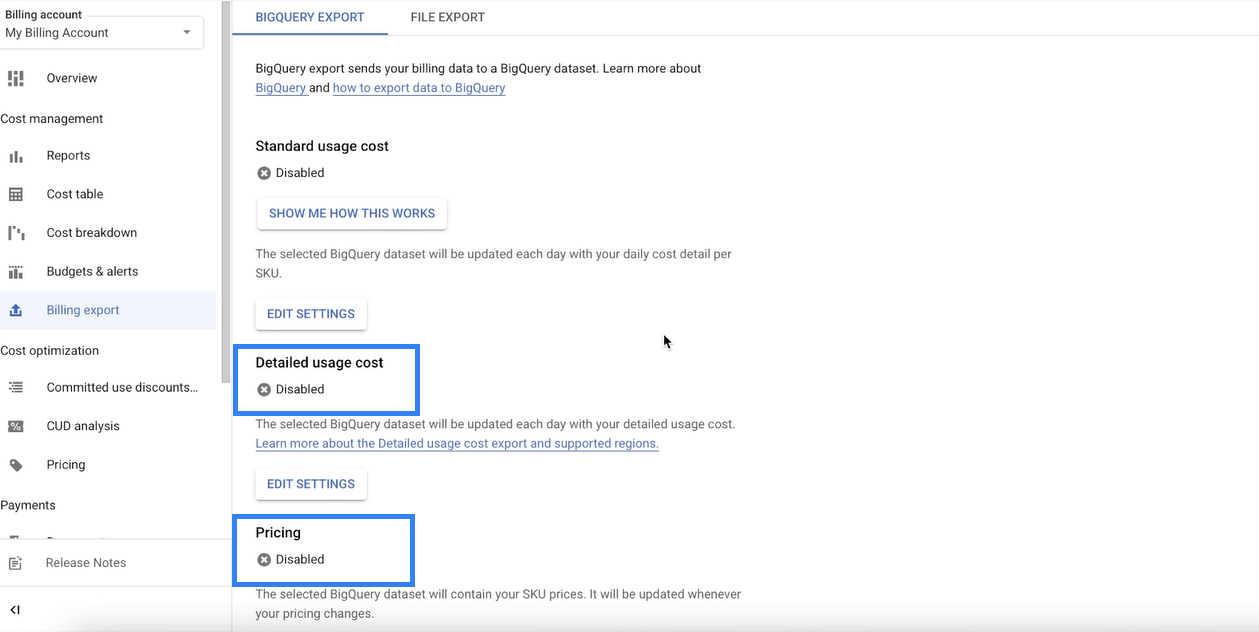
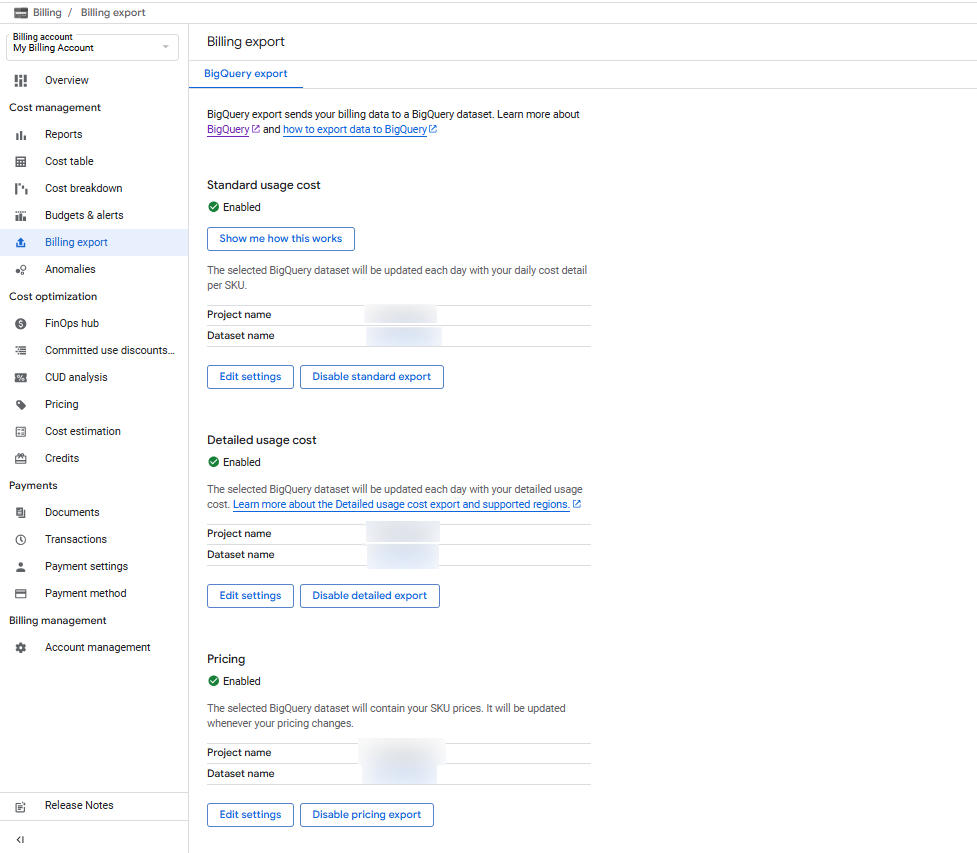
- Enable the export for Detailed usage cost and Pricing.
Note
- Detailed usage cost data contains detailed Cloud Billing account cost usage information.
- It includes everything in the standard usage cost data plus resource-level cost data, like a virtual machine or SSD that generates service usage.
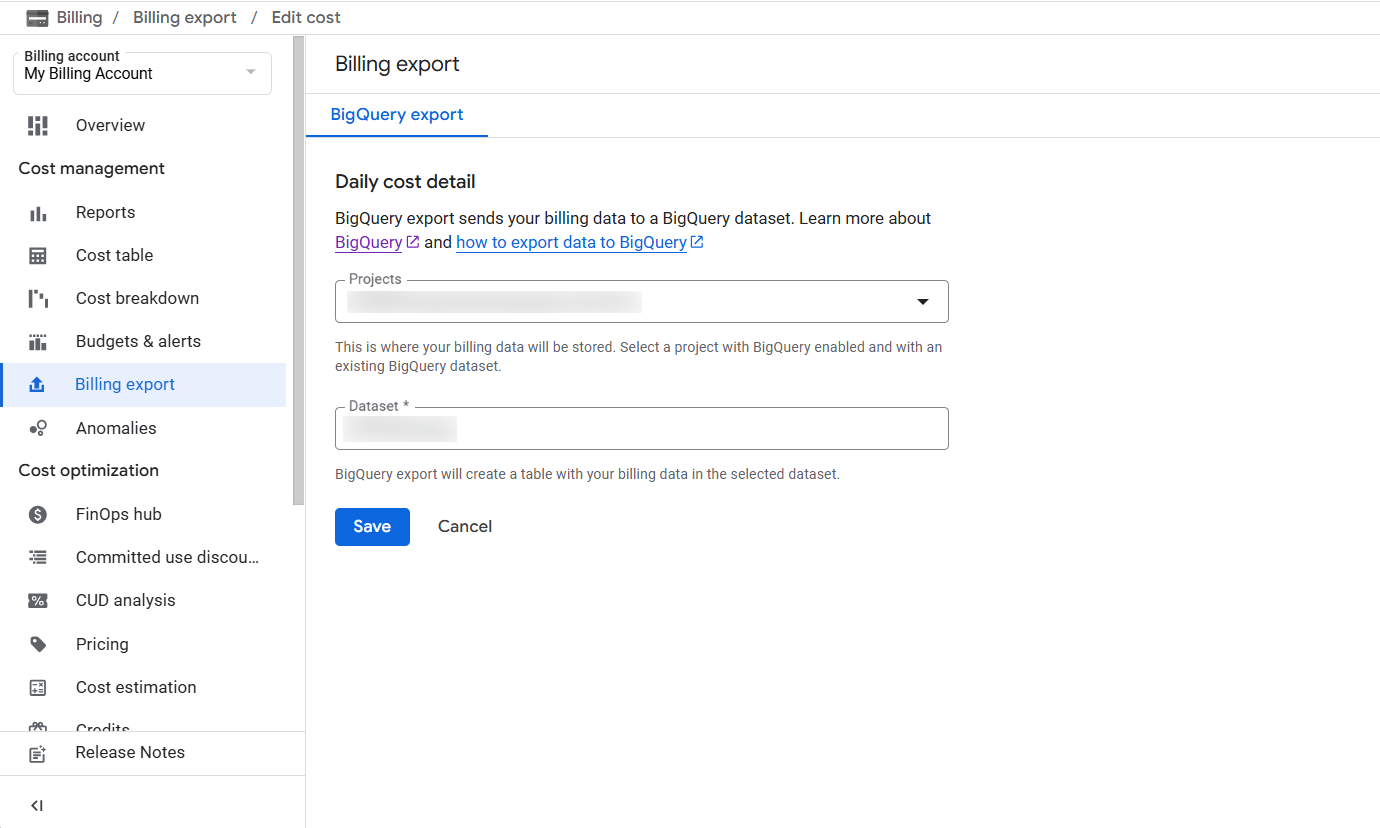
- Click Edit Settings for both Detailed Usage Cost and Pricing.
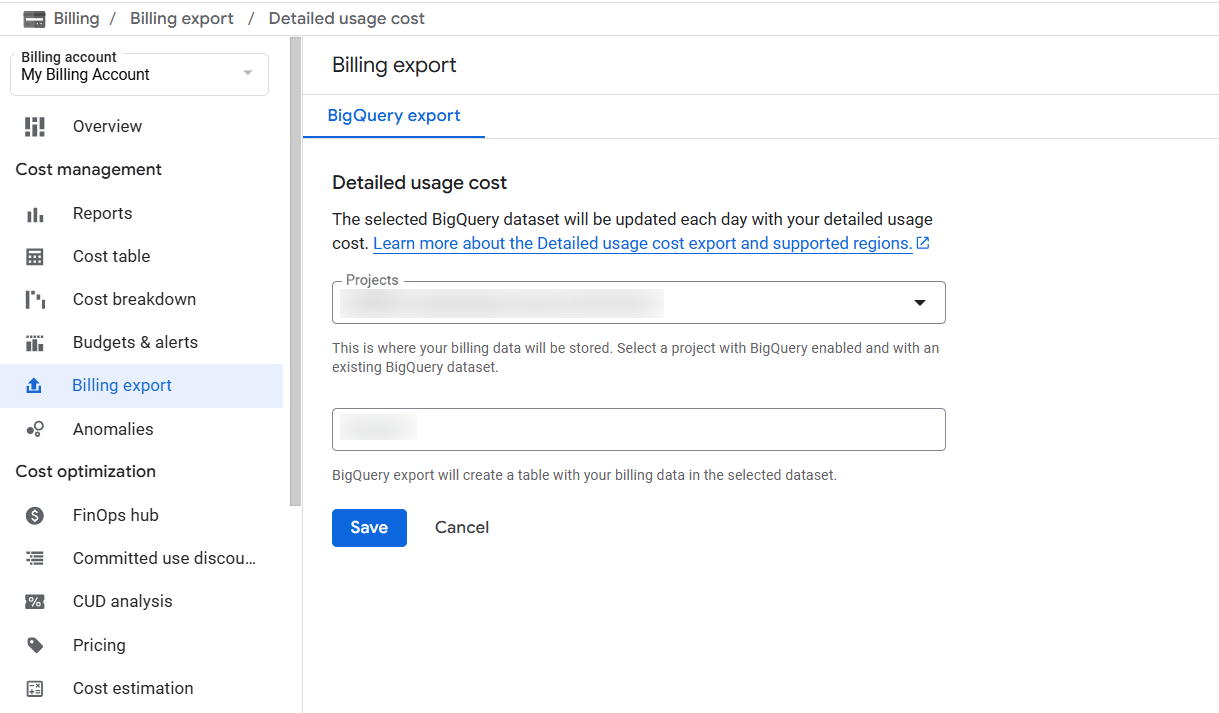
- Select the project and dataset where you want to store the billing and pricing data.
- After enabling the export, the page will appear as shown below.
1.3 Compute Engine
1.3.1 Enable Compute Engine API
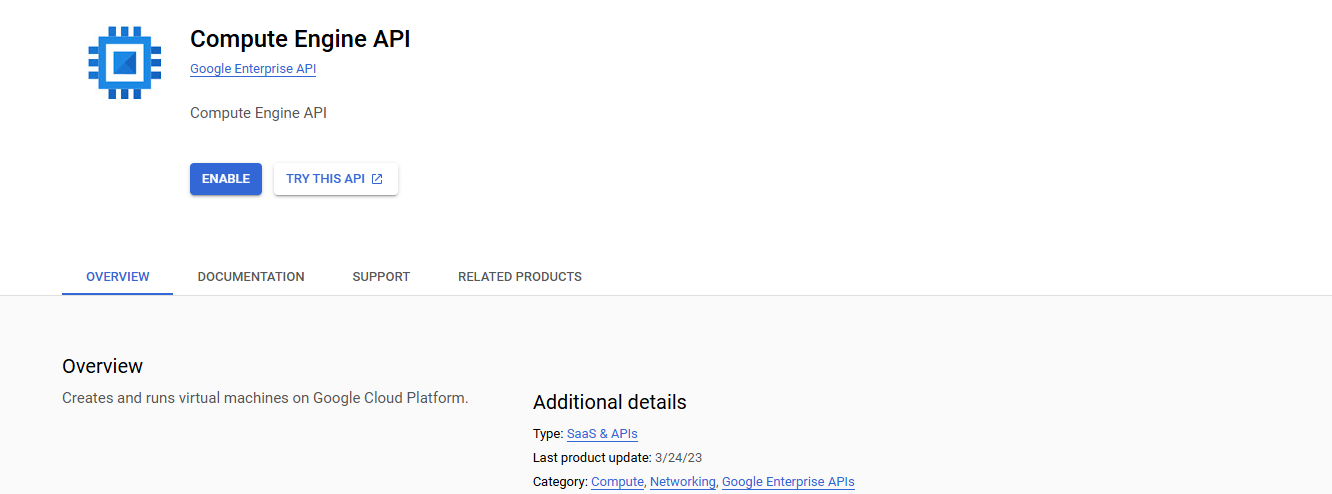
- Enable the Compute Engine API if it is not already enabled.
1.4 Cloud SQL
1.4.1 Enable Cloud SQL API
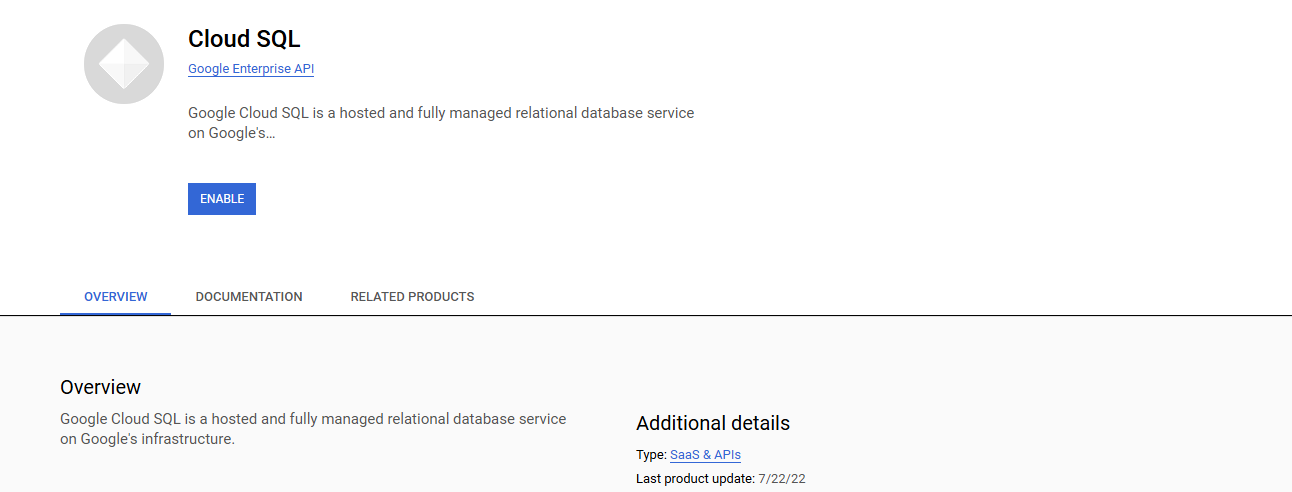
- Enable the Cloud SQL API if it is not already enabled.
1.4.2 Enable Cloud SQL Admin API
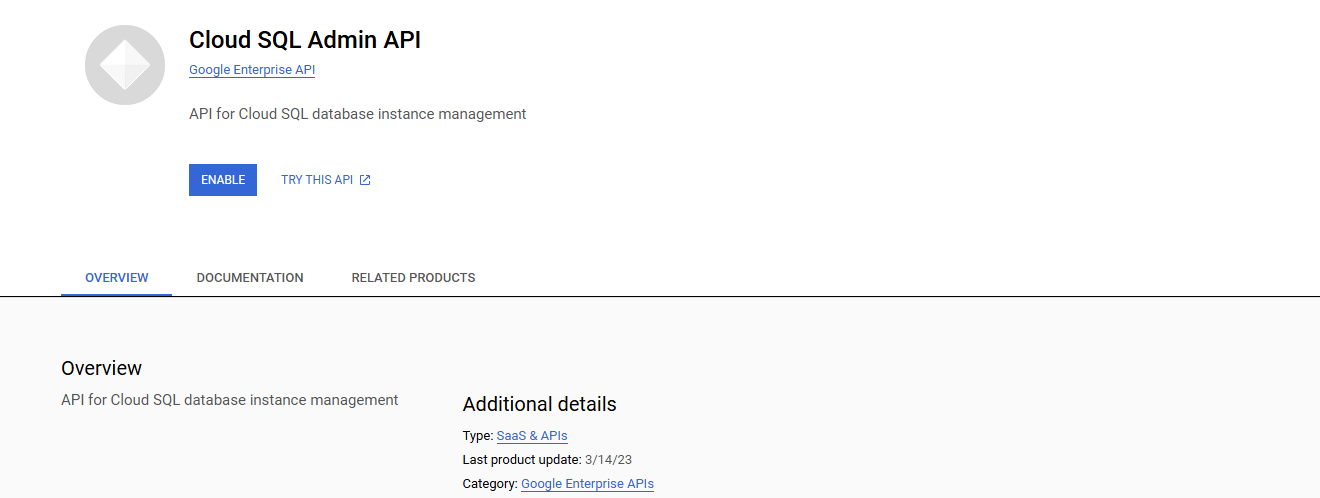
- Enable the Cloud SQL Admin API if it is not already enabled.
1.5 Cloud Run Function
1.5.1 Enable Cloud Run Admin API
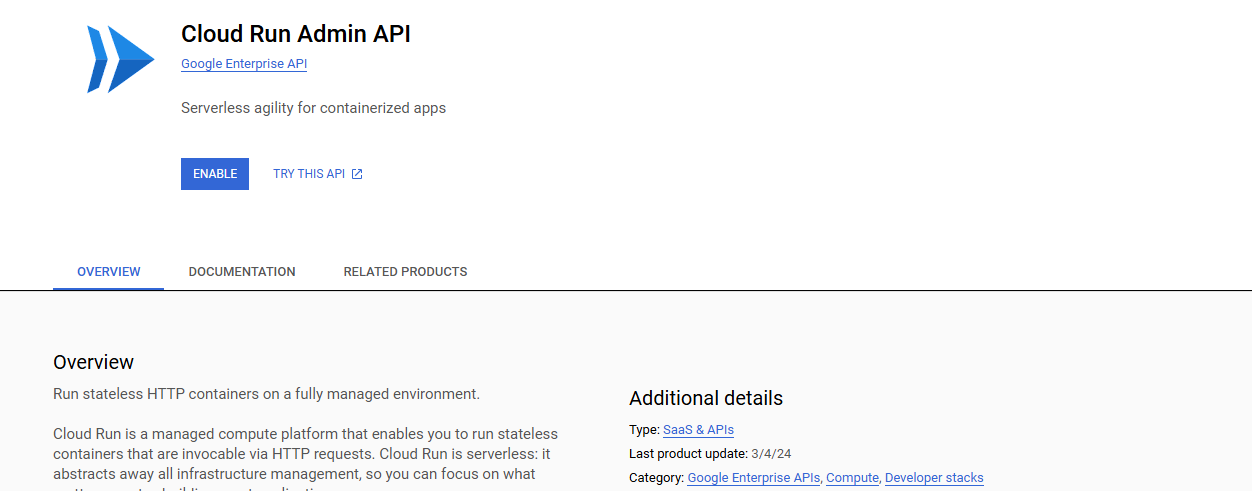
- Enable the Cloud Run Admin API if it is not already enabled.
1.6 Cloud Resource Manager
1.6.1 Enable Cloud Resource Manager API
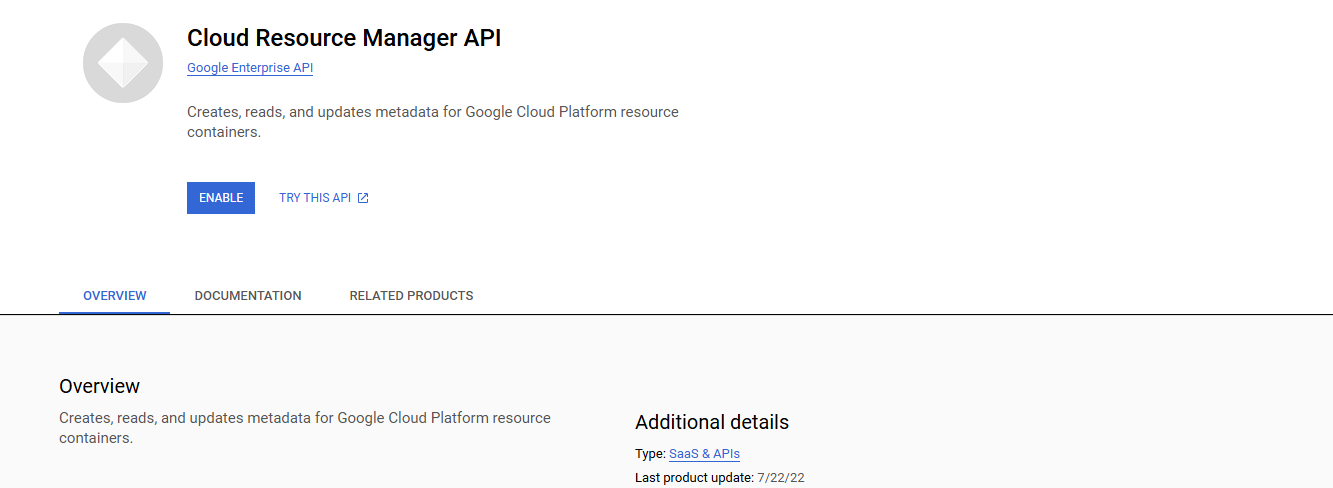
- Enable the Cloud Resource Manager API if it is not already enabled.
1.7 Networking
1.7.1 Enable Service Networking API
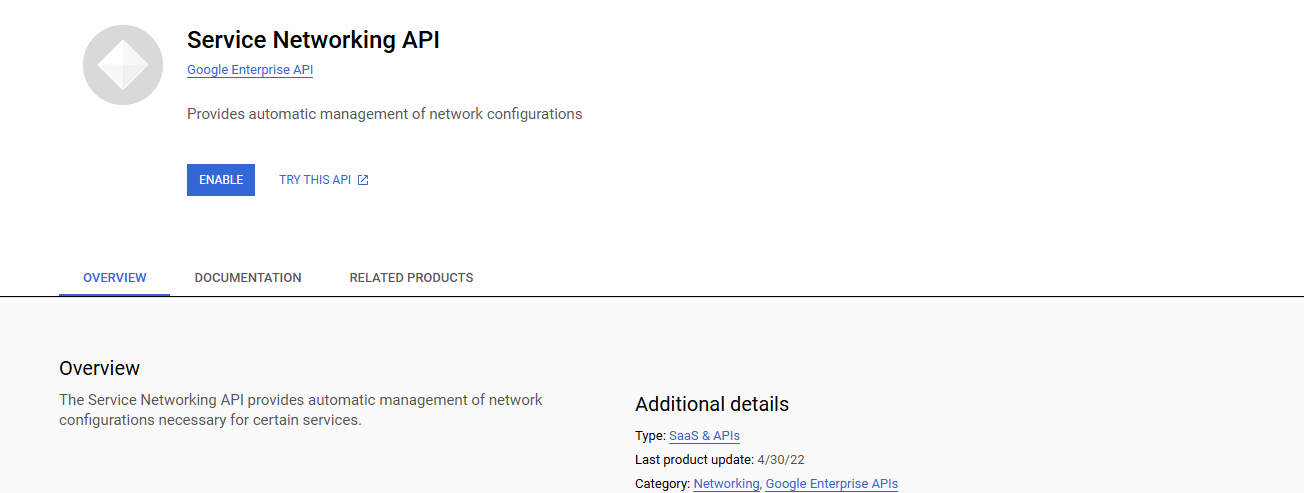
- Enable the Service Networking API if it is not already enabled.
1.8 Cloud Build
1.8.1 Enable Cloud Build API
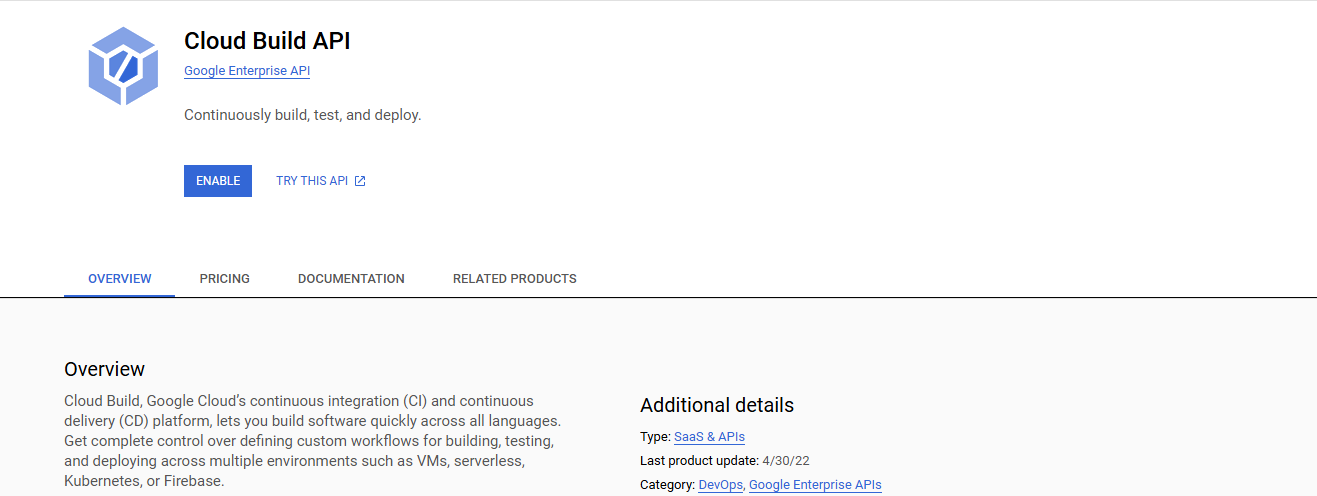
- Enable the Cloud Build API if it is not already enabled.
1.9 Cloud IAM
1.9.1 Enable Identity and Access Management (IAM) API
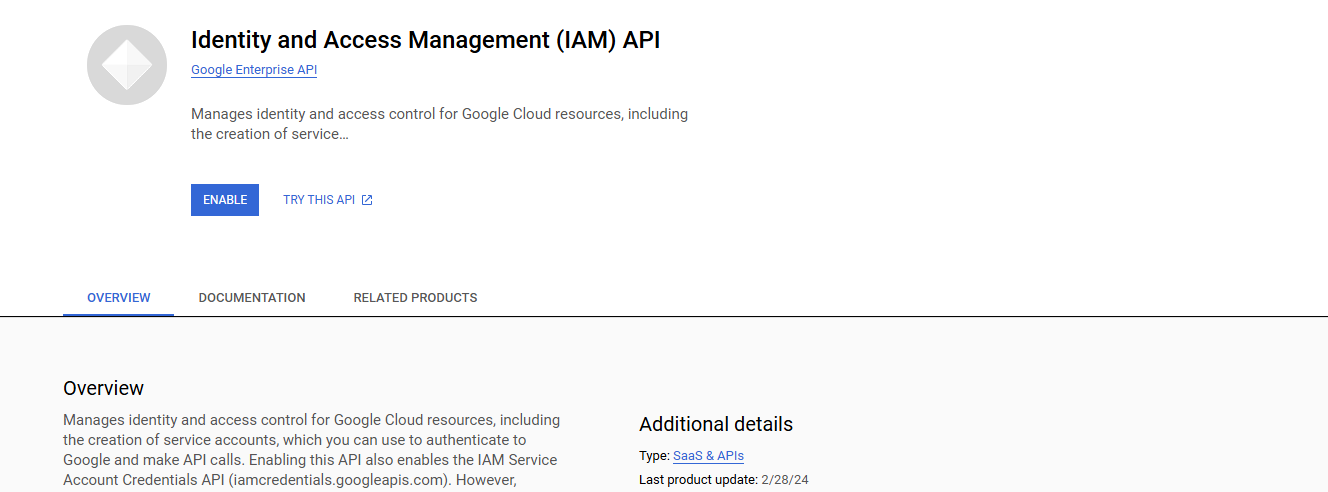
- Enable the Identity and Access Management (IAM) API if it is not already enabled.
1.9.2 Assigning roles
Here is a detailed step-by-step guide on how to assign the following IAM roles to a user and service account in Google Cloud Platform (GCP). You can do this via the Google Cloud Console, gcloud CLI, or Terraform.
Assigning roles via Google Cloud Console
- Go to IAM & Admin
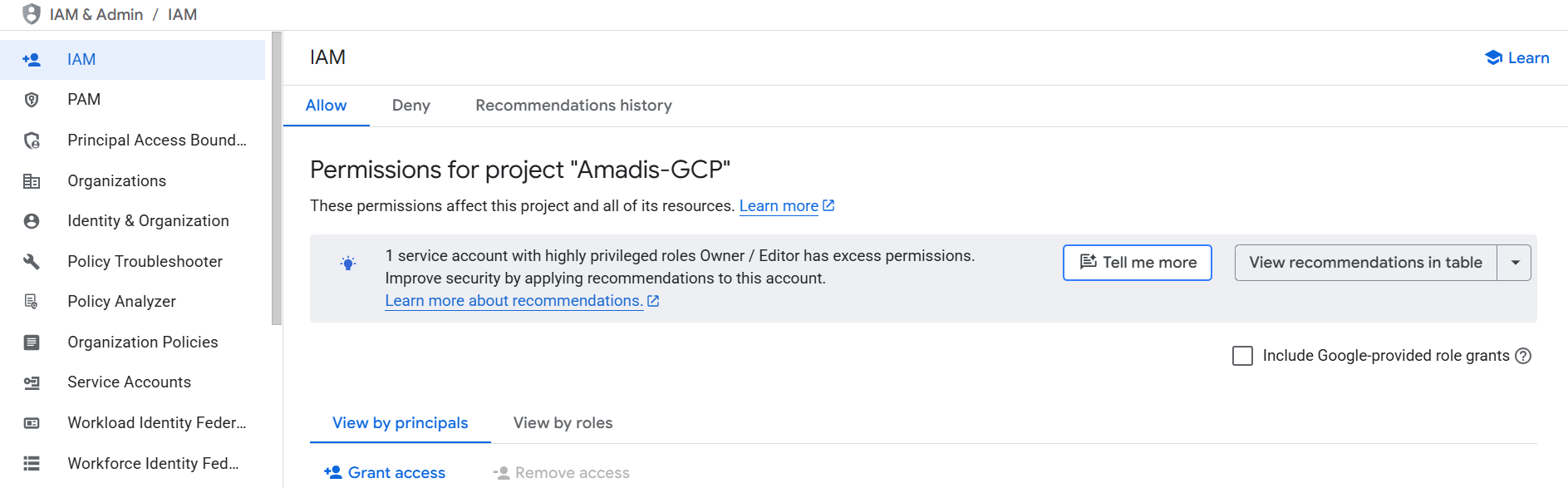
- Click Grant Access to assign one or more IAM roles to a user or service account for a specific project
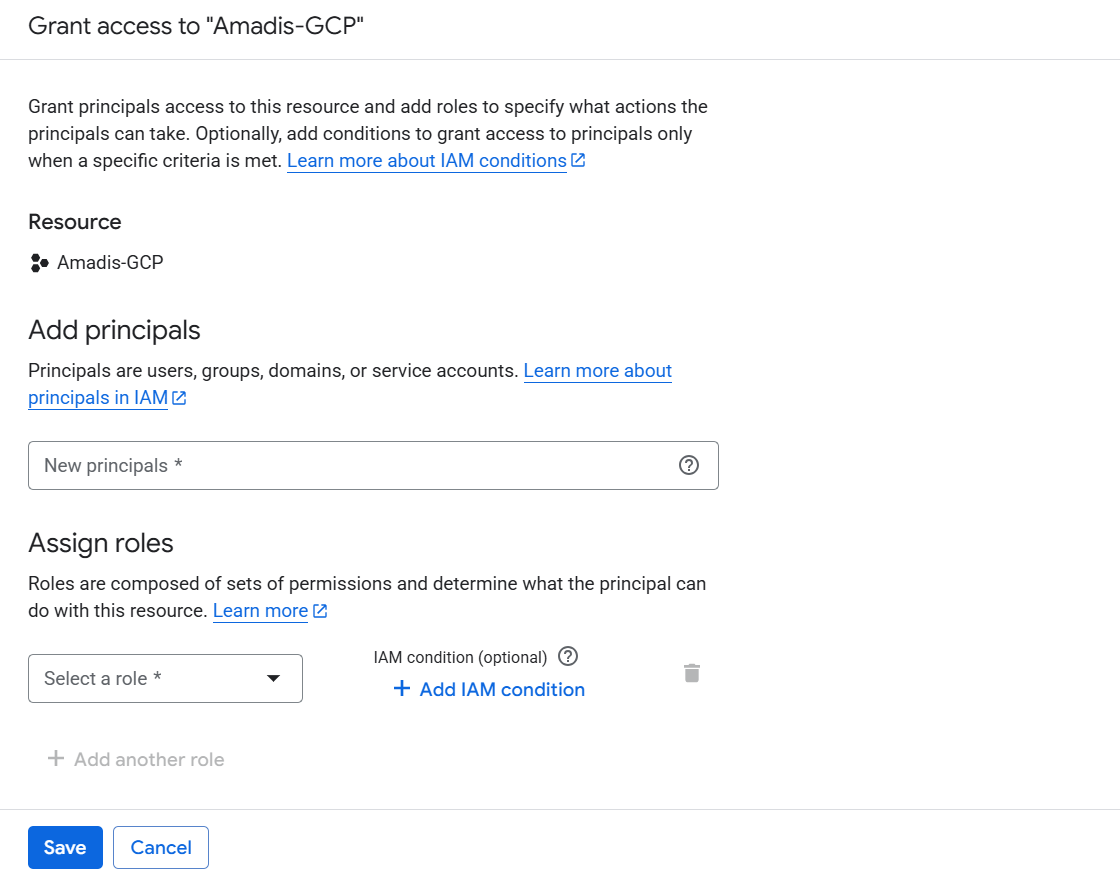
- Enter the user or service account email and add the roles by searching each role name.
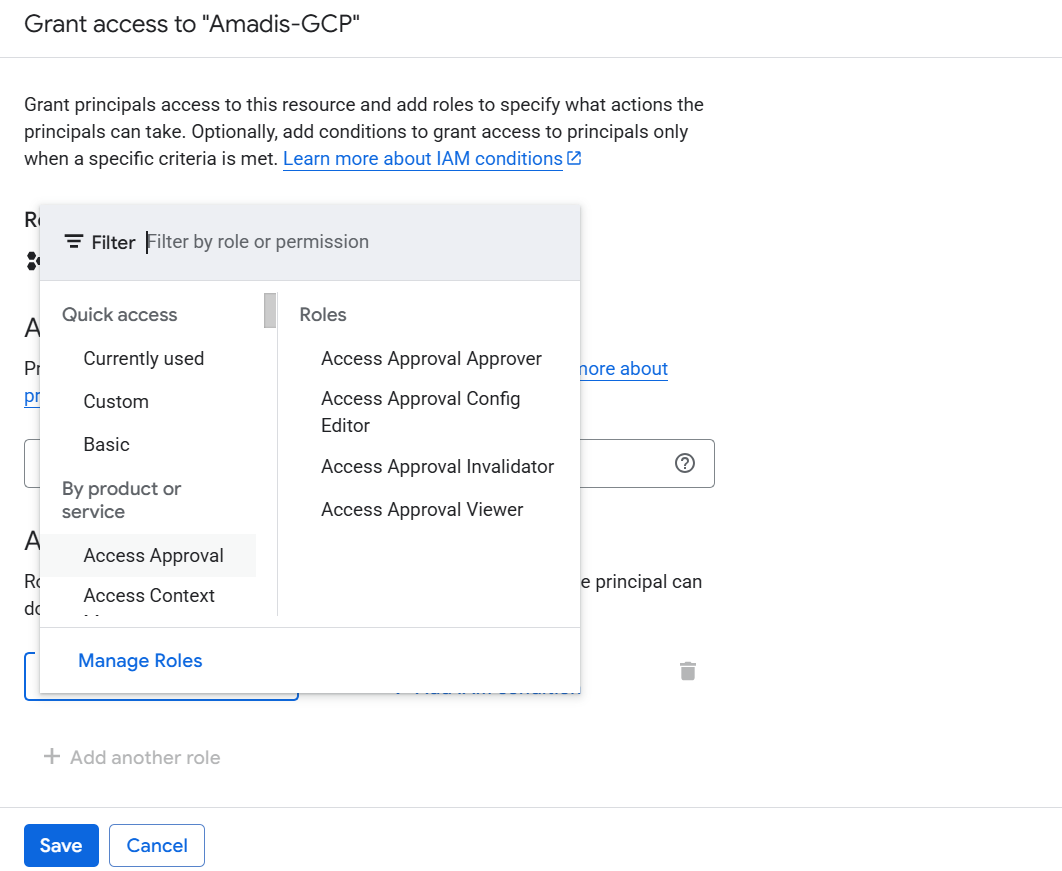
- Click Add Another Role as needed and click Save.
Assigning roles using gcloud CLI
Basic Command:
-
gcloud projects add-iam-policy-binding PROJECT_ID \ --member="user:USER_EMAIL" \ --role="roles/ROLE_NAME" -
Here replace PROJECT_ID with your actual Google Cloud Project ID and USER_EMAIL with the email address of the user or service account and also replace ROLE_NAME with the exact role name you want to assign.
Assigning roles to access billing and pricing data from another project
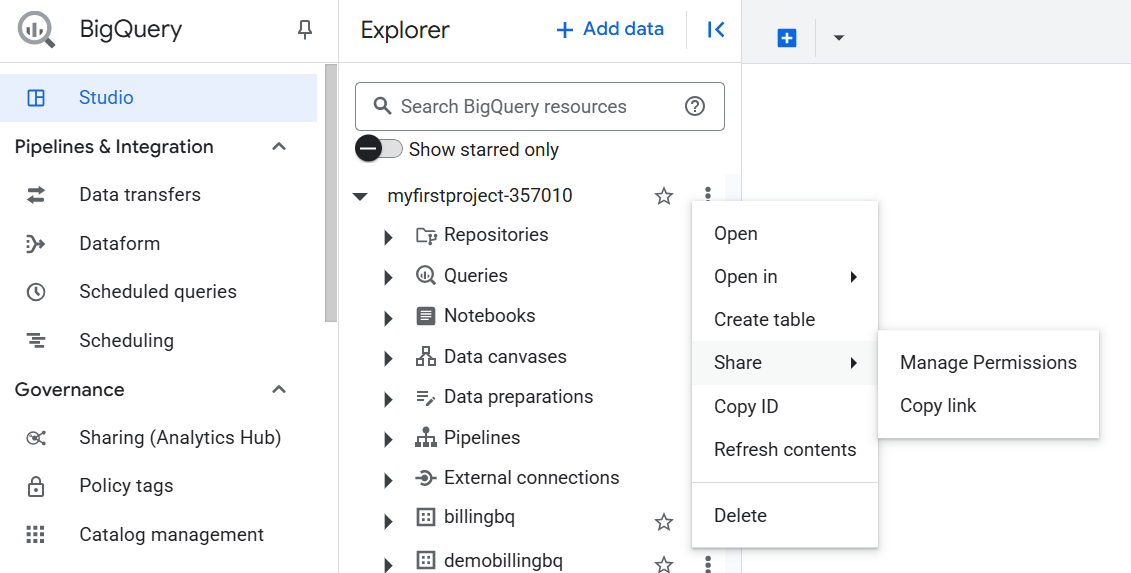
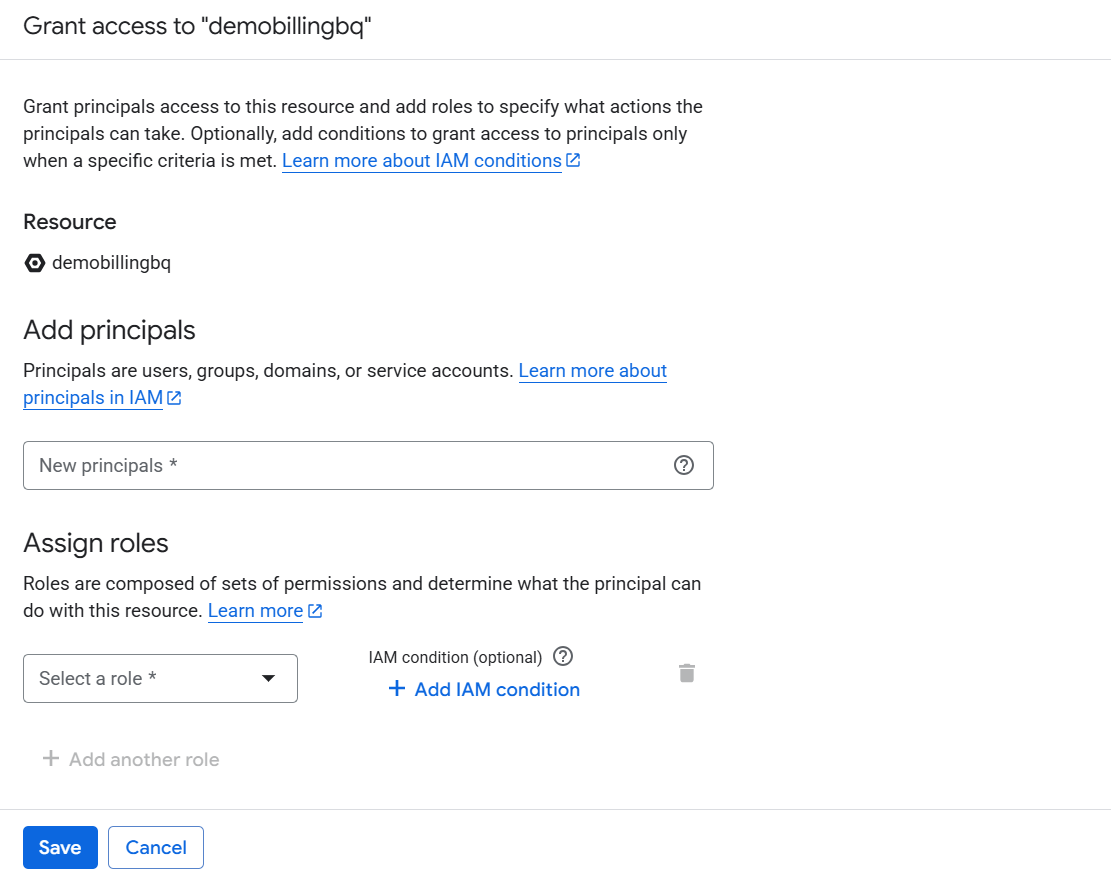
- Go to BigQuery in Google Cloud Console. In the Explorer panel, find the dataset.
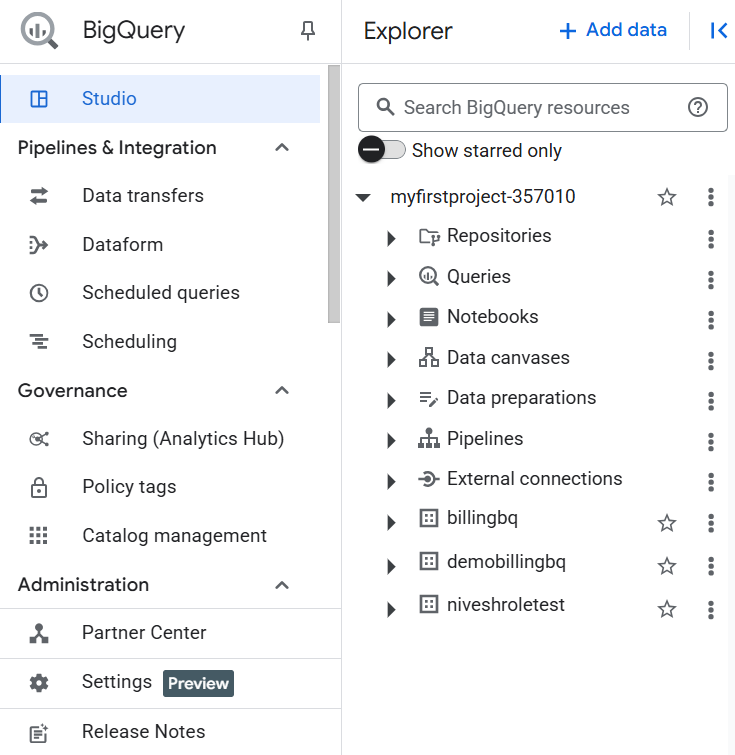
- Click the 3-dot menu next to the dataset name, and choose "Share" → "Manage Permissions".
- Click Add Principal at the top.
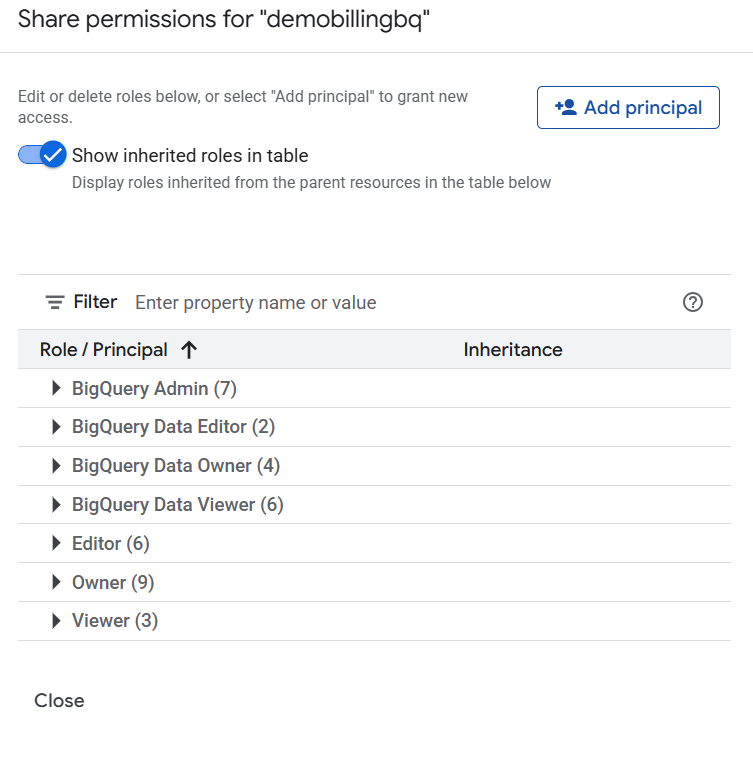
- In the New principals field, enter the service account or user that needs access. And click Save.
1.10 Cloud Monitoring
1.10.1 Enable Cloud Monitoring API
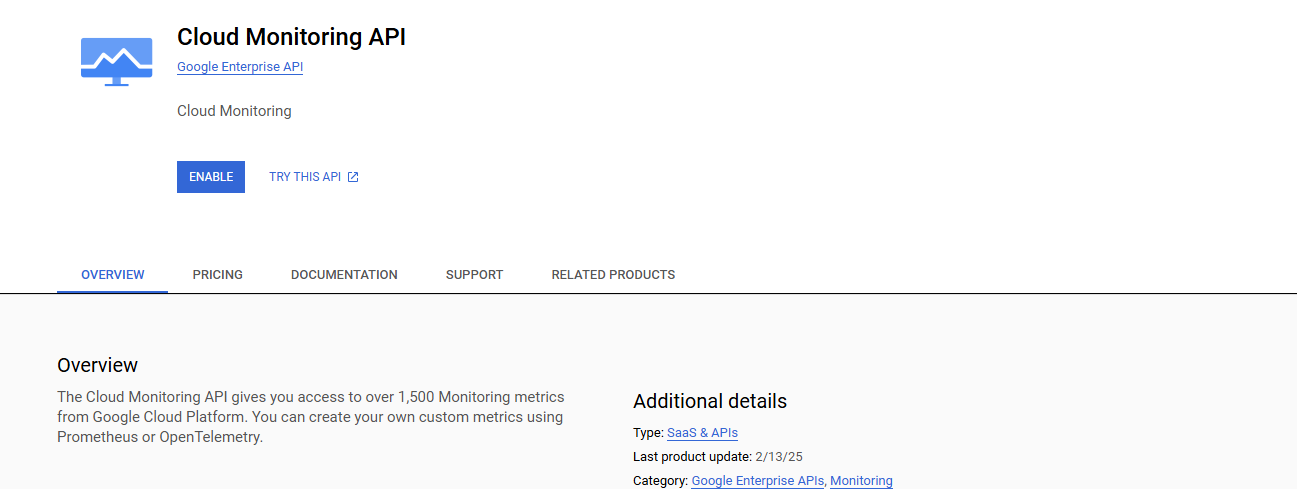
- Enable the Cloud Monitoring API if it is not already enabled.
1.11 Cloud Logging
1.11.1 Enable Cloud Logging API
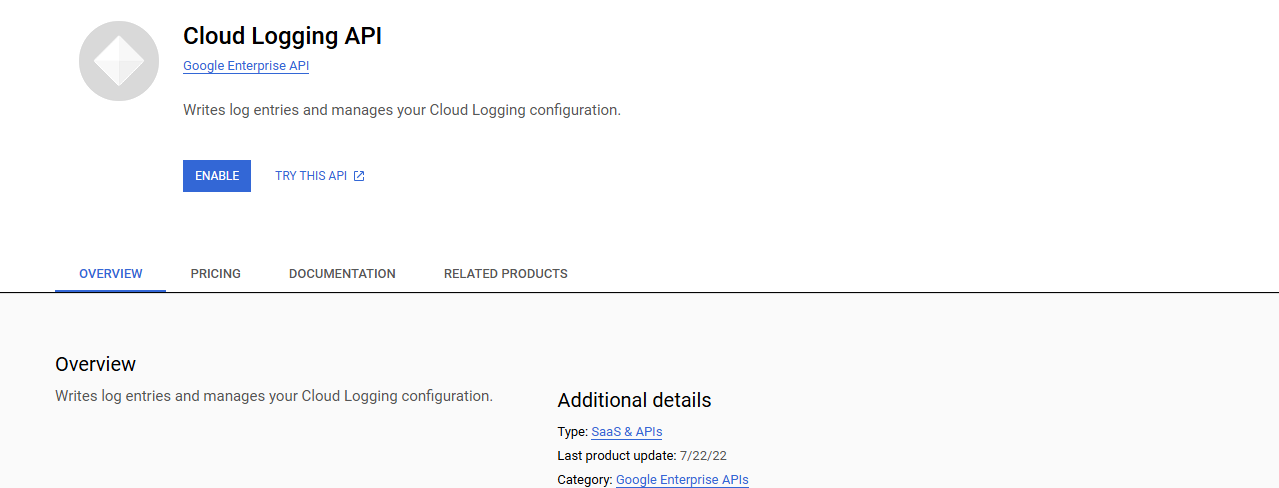
- Enable the Cloud Logging API if it is not already enabled.